Notifications
The CAA Self Service Portal keeps you informed about updates, requests, approvals, and other portal activity through notifications.
Accessing Notifications
From the dashboard, open the profile menu by clicking your name or initials at the top-right corner of the page. The profile menu displays your account details, email address, and quick links.
Click Notifications to open the notifications page. The menu also shows the number of new notifications beside the Notifications option.
Viewing Notifications
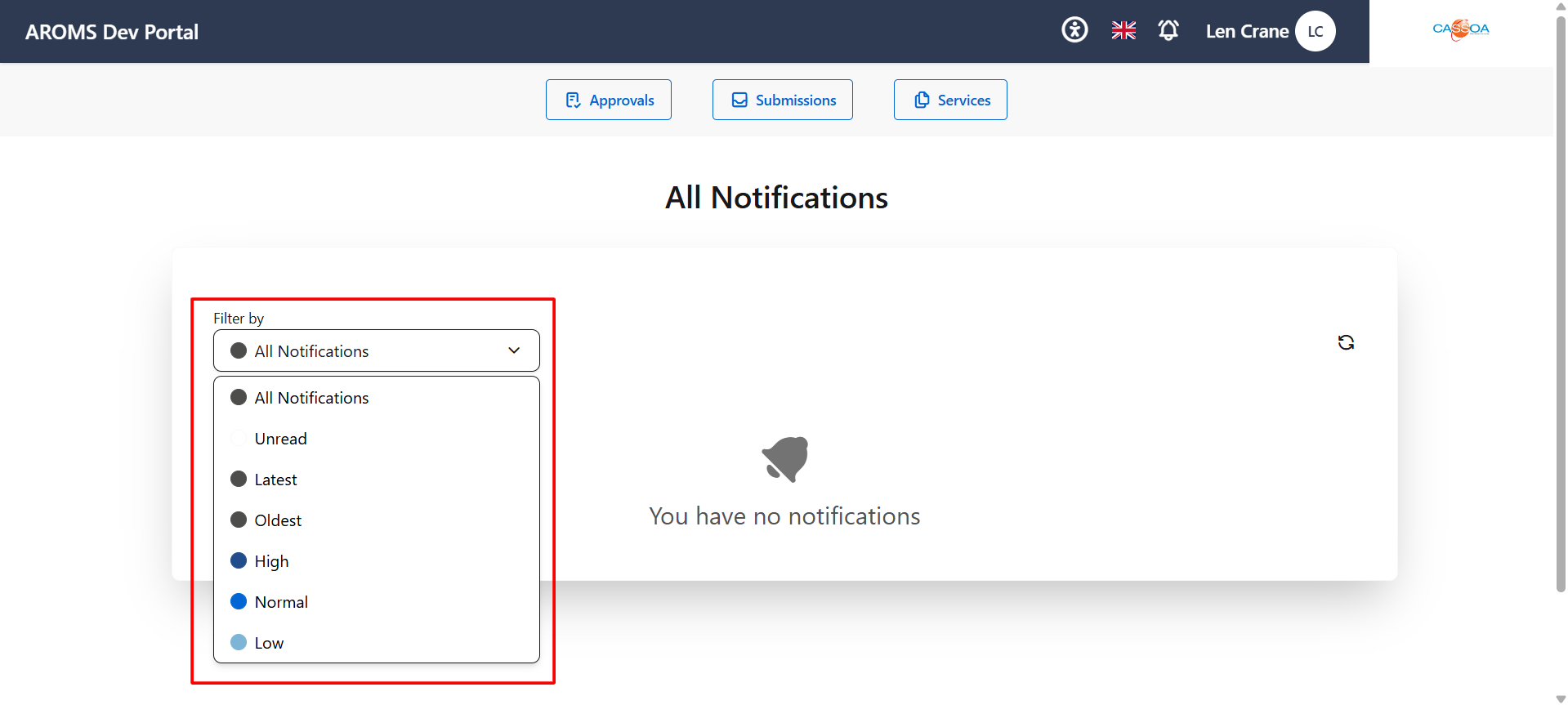
The All Notifications page displays notifications linked to your account. Use this page to review portal messages and check whether there are new updates that need your attention.
At the top of the page, you can also use the main navigation buttons to move to Approvals, Submissions, or Services.
Filtering Notifications
Use the Filter by dropdown to change which notifications are displayed. The available filter options are:
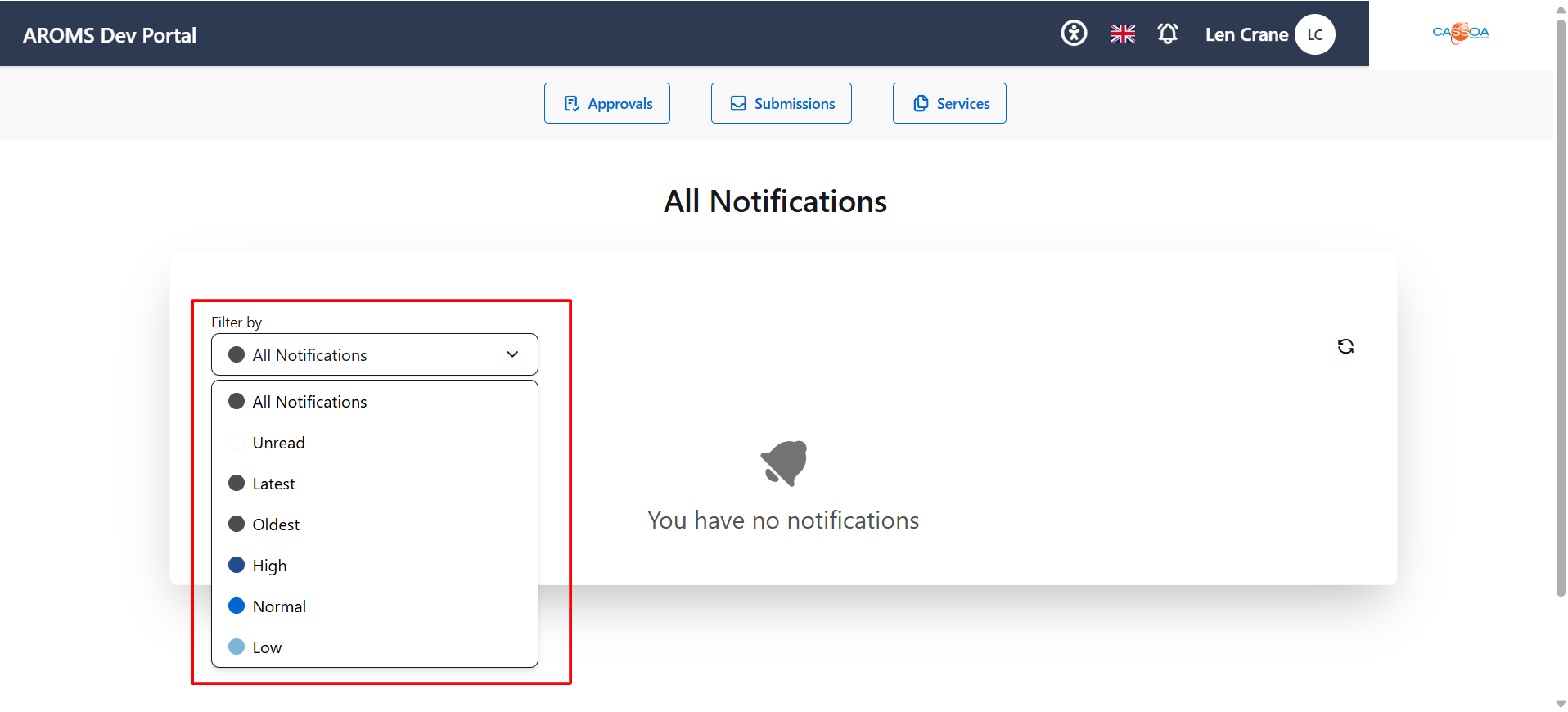
- All Notifications - Shows all notifications.
- Unread - Shows notifications that have not been opened.
- Latest - Sorts notifications from newest to oldest.
- Oldest - Sorts notifications from oldest to newest.
- High - Shows high-priority notifications.
- Normal - Shows normal-priority notifications.
- Low - Shows low-priority notifications.
Click the refresh icon to reload the notifications list. If there are no notifications for the selected filter, the page displays You have no notifications.