Apply for a Licensing service
Overview
This guide explains how to apply for a Personnel Licensing service using Student Pilot Licence (SPL) as an example. Other Personnel Licensing services may have different form fields and document requirements, but the general process is similar.
Step 1: Open Services from the Dashboard
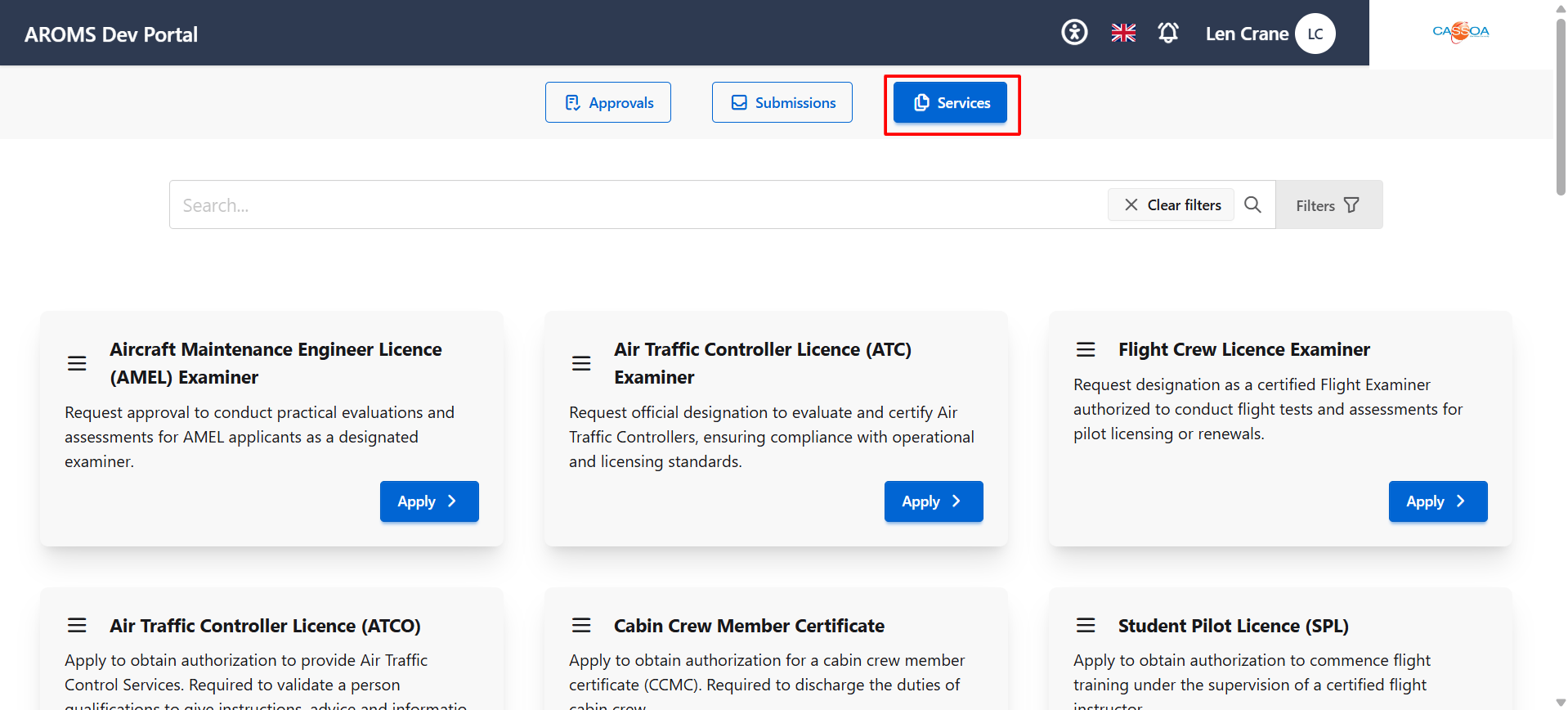
From the main dashboard, click the Services button. This opens the services listing page where available services are displayed as cards.
Step 2: Find the Required Service
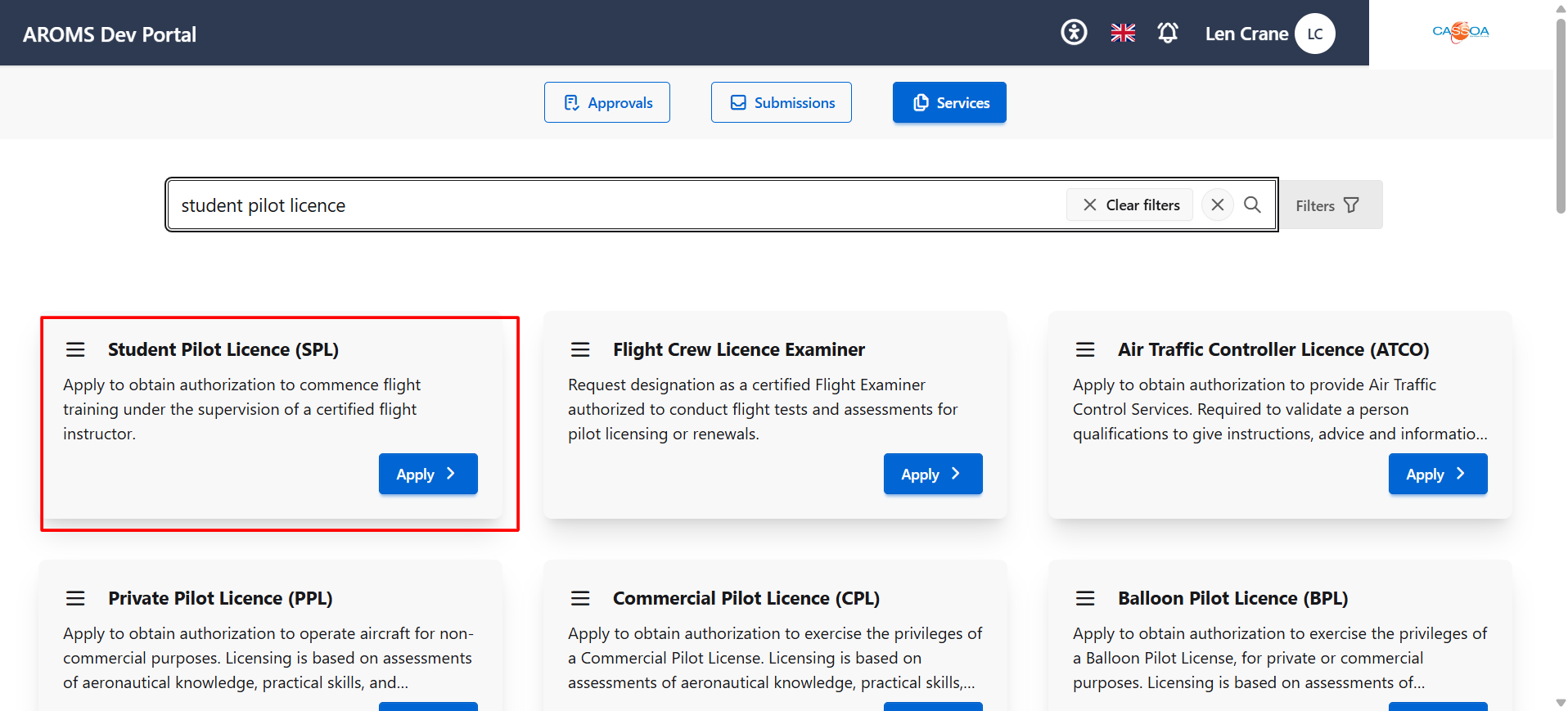
On the services listing page, browse the available services or use the search and filter options to narrow down the list. For this example, locate Student Pilot Licence (SPL).
Step 3: Apply for Student Pilot Licence
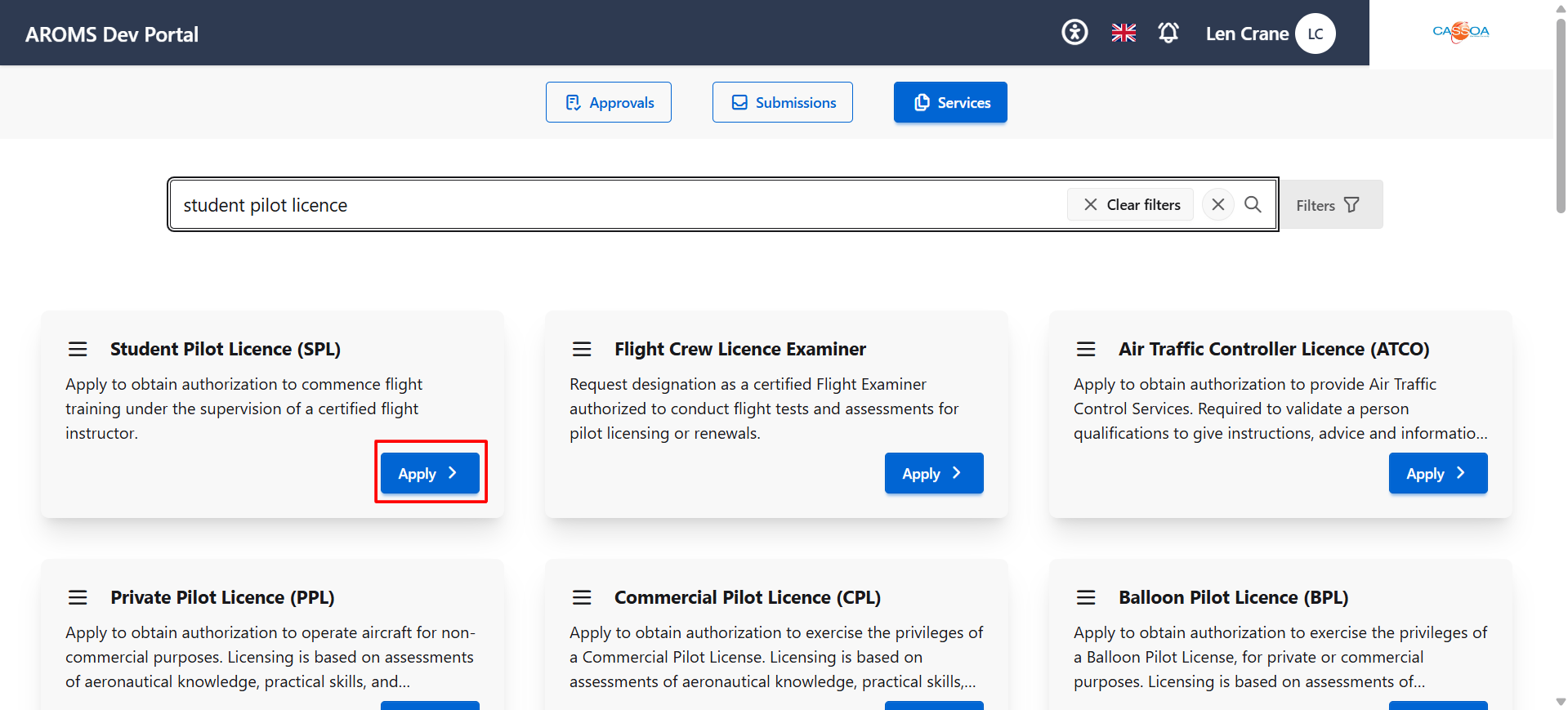
On the Student Pilot Licence (SPL) card, click Apply. The portal redirects you to the service guidelines page.
Step 4: Review the Guidelines
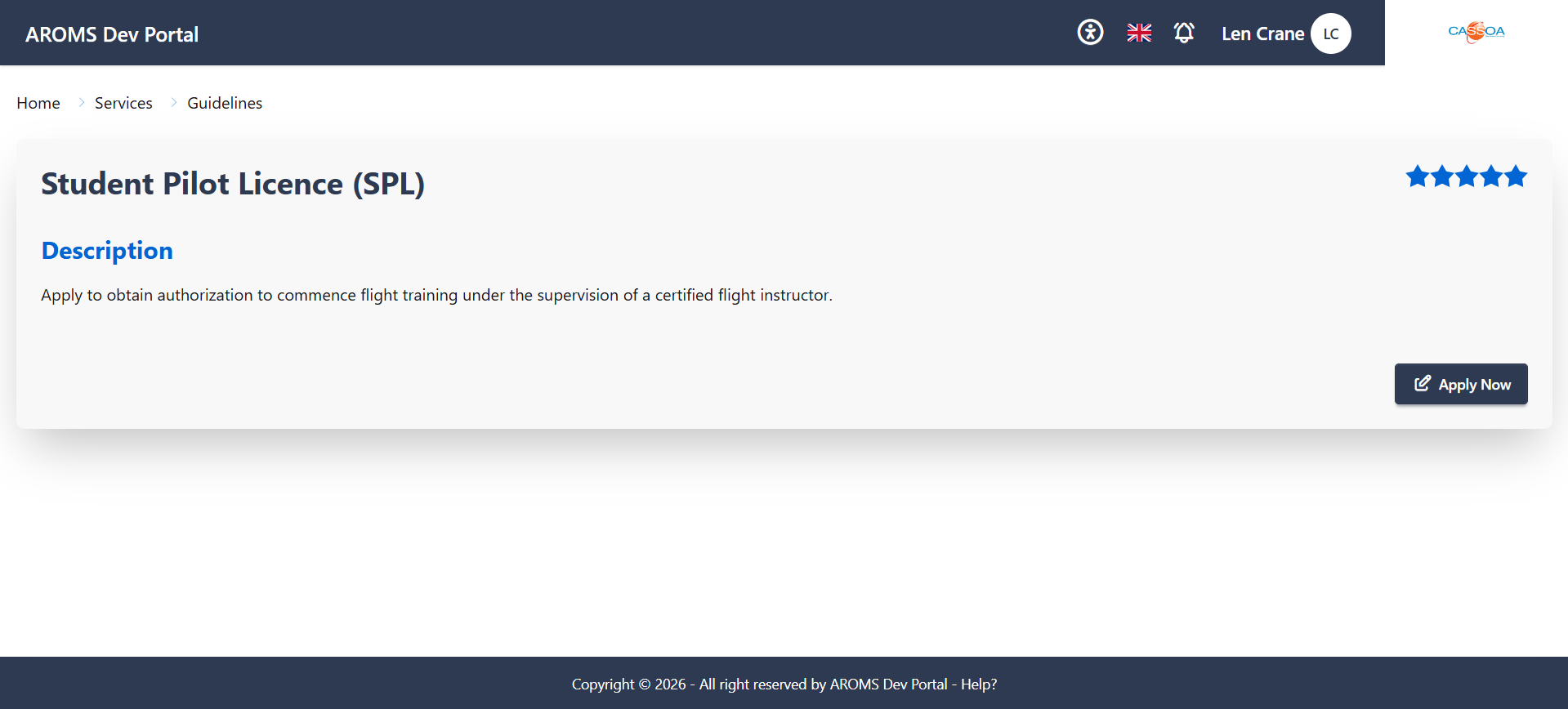
The guidelines page displays the service title, description, and rating. Review the information to confirm that you have selected the correct service.
Step 5: Start the Application
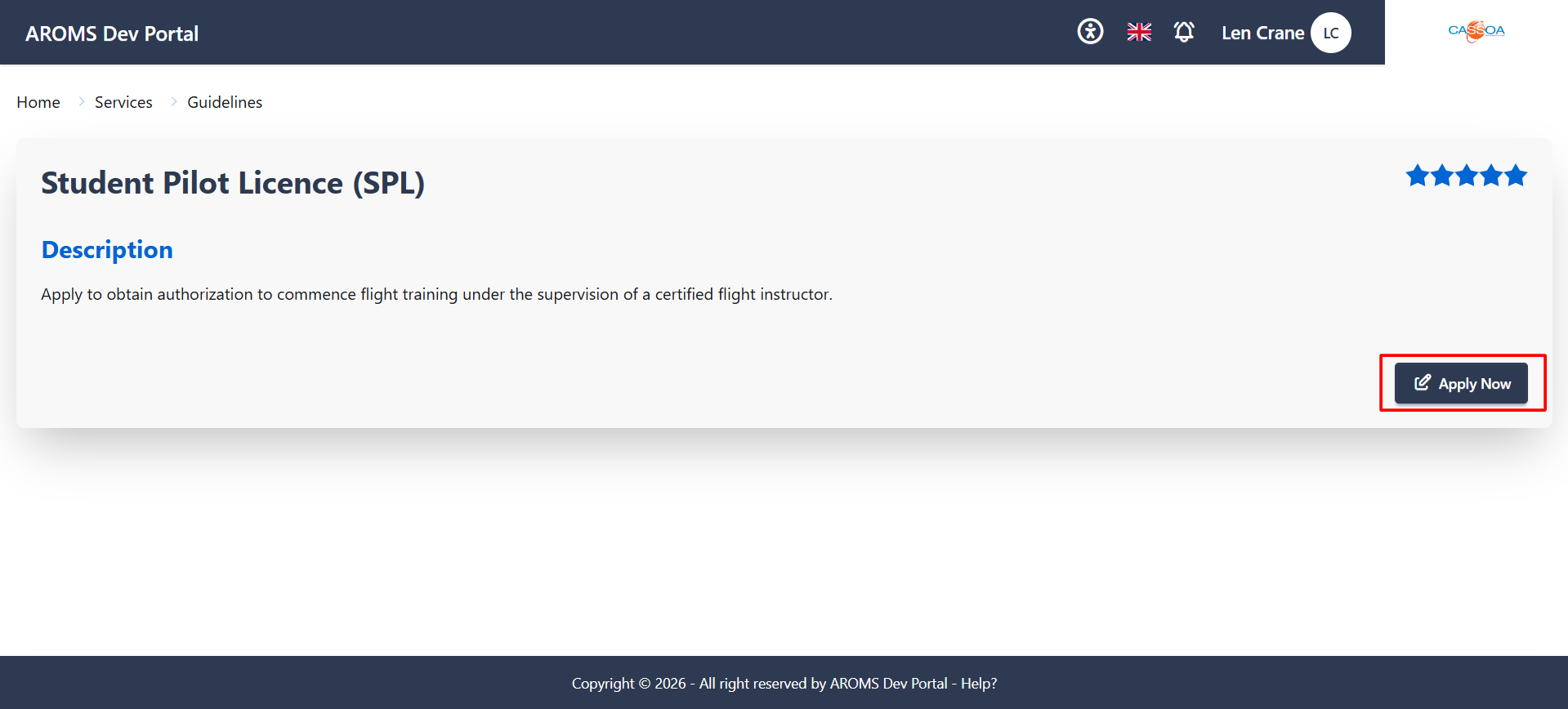
After reviewing the guidelines, click Apply Now to open the application form for Student Pilot Licence (SPL).
Completing the Application Form
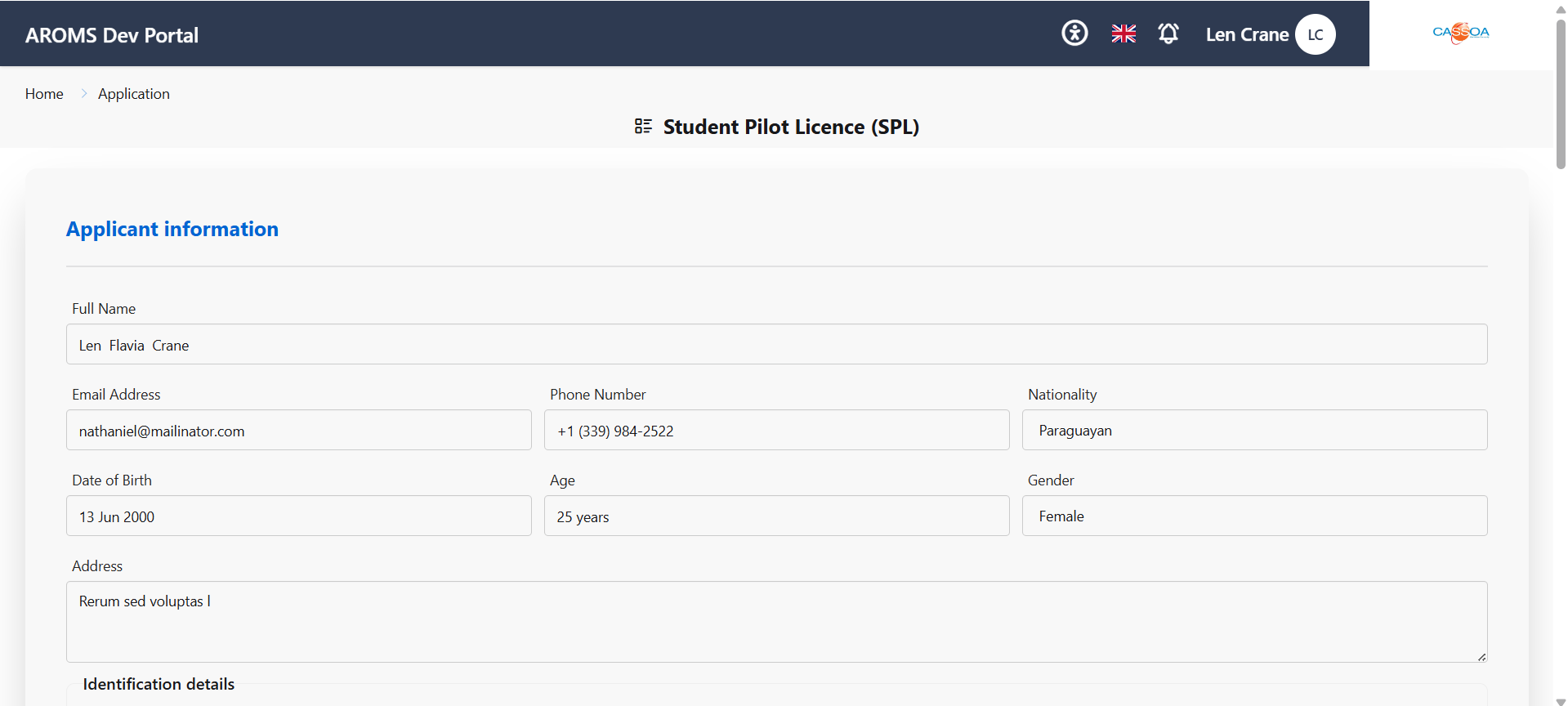
Complete the application form according to the fields shown on the screen. Some applicant information may already be filled in from your profile. Review the prefilled information, complete all required service-specific sections, and upload any requested supporting documents.
Applicant Information
The form opens with the Applicant information section. Details such as Full Name, Email Address, Phone Number, Nationality, Date of Birth, Age, Gender, and Address are already be filled in from your profile.
Identification Details
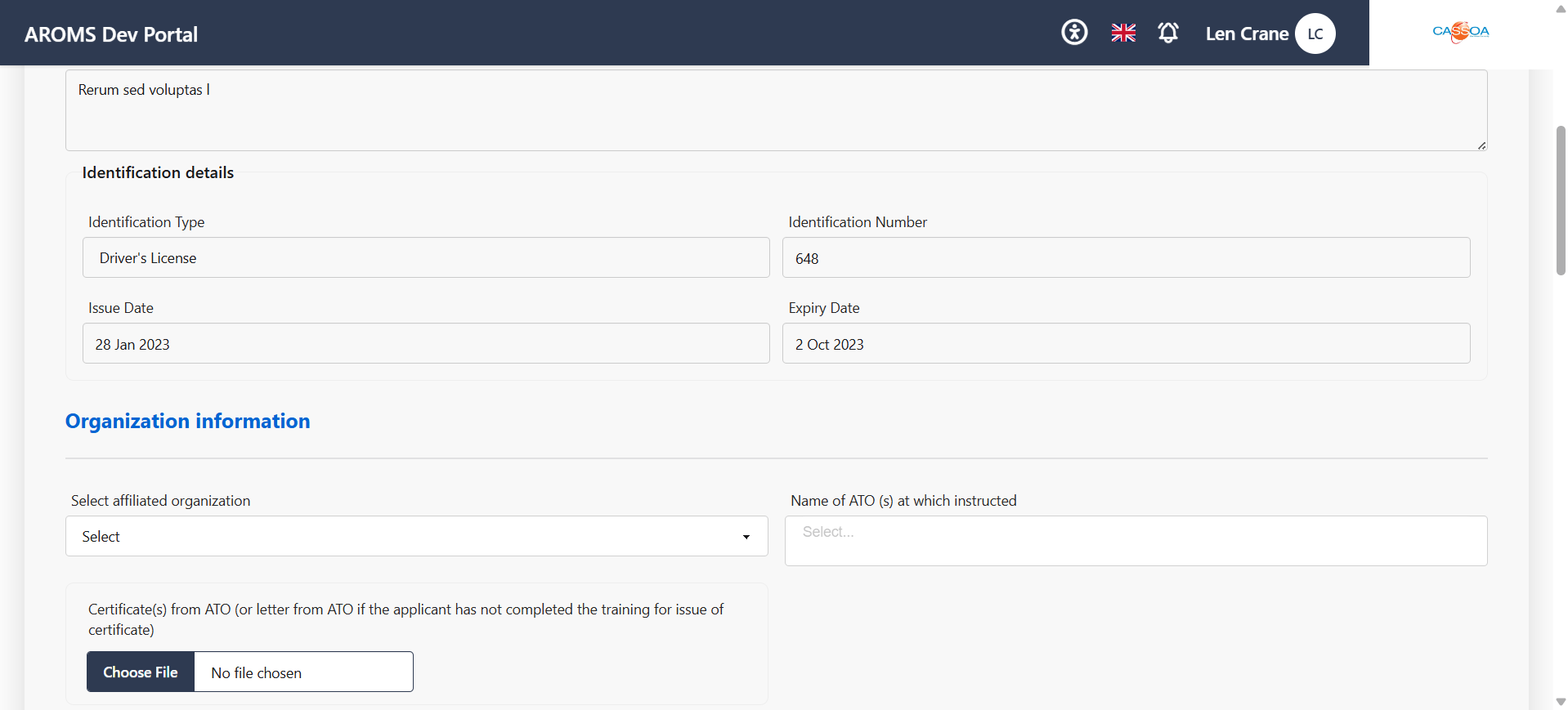
The Identification details section displays the applicant's identification information, including the Identification Type, Identification Number, Issue Date, and Expiry Date.
Review the identification details and confirm that they match the identification document linked to your account.
Organization Information
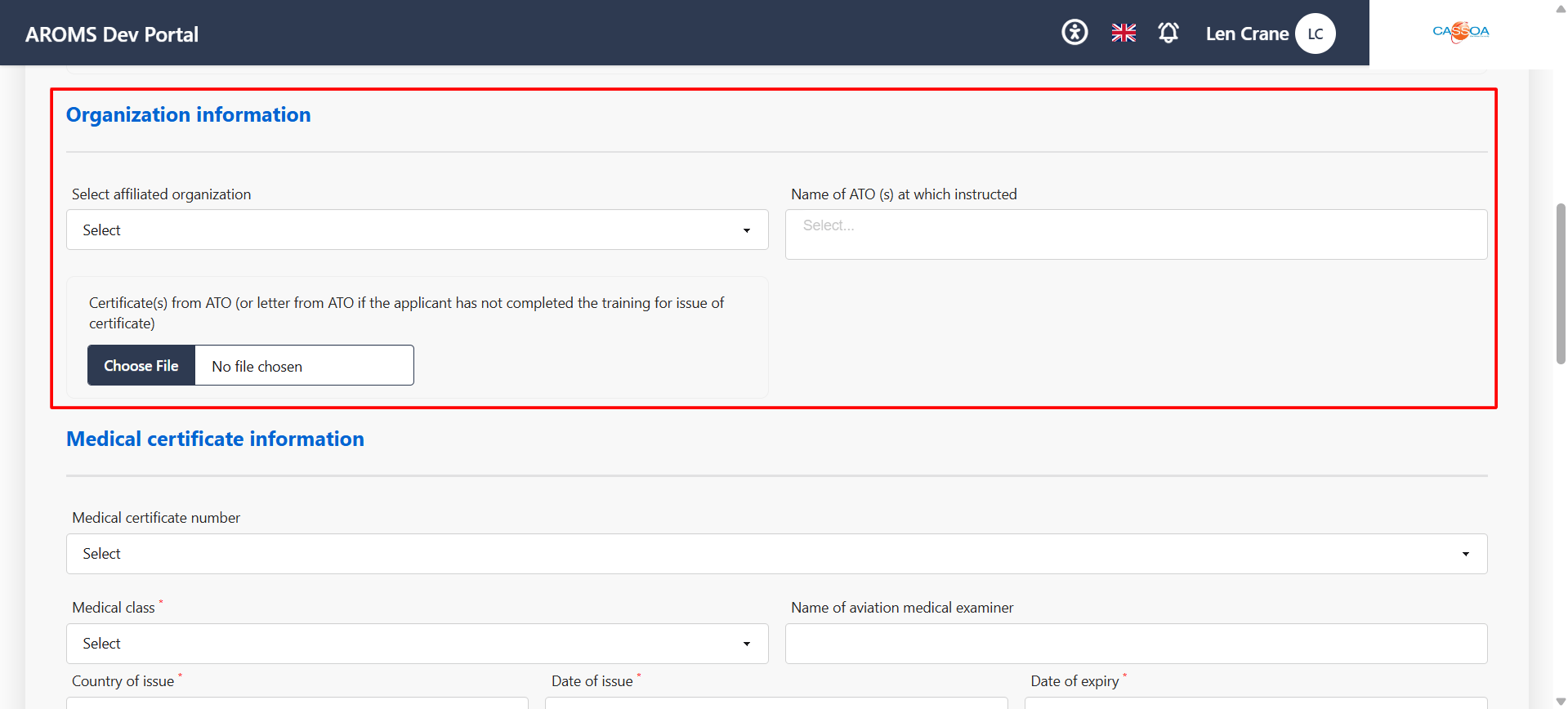
In the Organization information section, select the affiliated organization where applicable. For SPL, you may also need to provide the Name of ATO(s) at which instructed.
Upload the required ATO certificate or letter if requested by the form. This may include a certificate from an Approved Training Organization, or a letter from the ATO if training has not yet been completed.
Medical Certificate Information
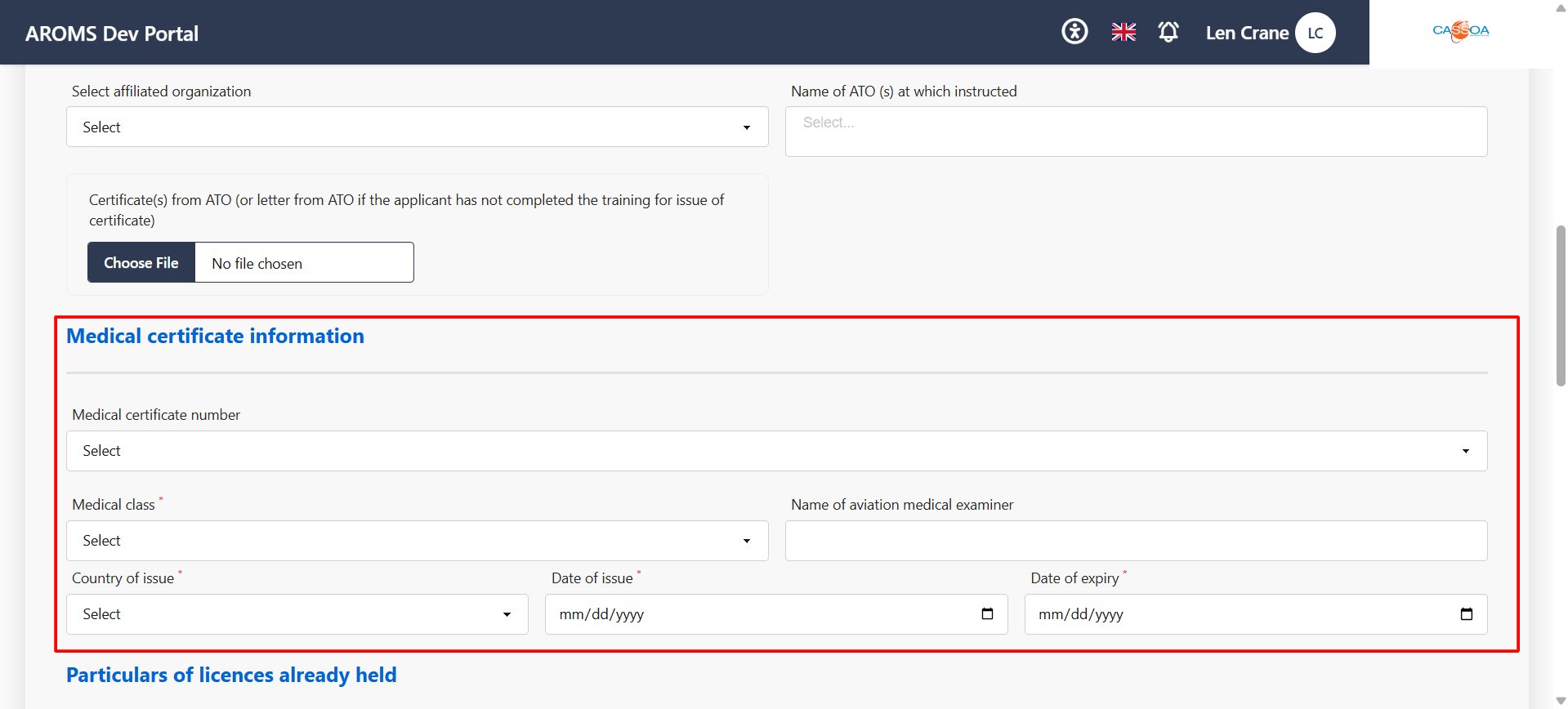
In the Medical certificate information section, provide the required medical certificate details. This may include the Medical certificate number, Medical class, Name of aviation medical examiner, Country of issue, Date of issue, and Date of expiry.
Fields marked with an asterisk are mandatory and must be completed before submission.
Particulars of Licences Already Held
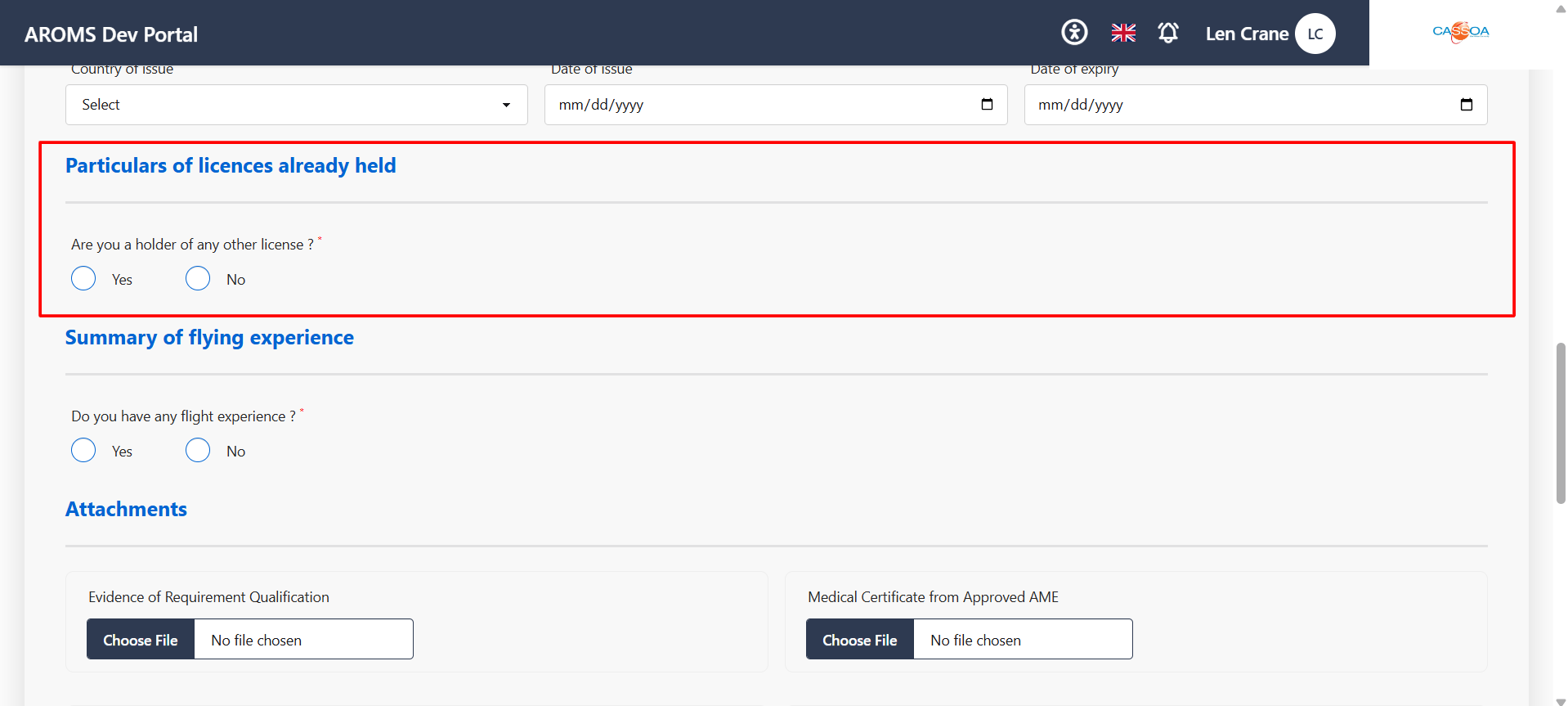
In the Particulars of licences already held section, indicate whether you already hold another licence. Select Yes or No as applicable. If you select Yes, complete any additional licence details requested by the form.
Summary of Flying Experience
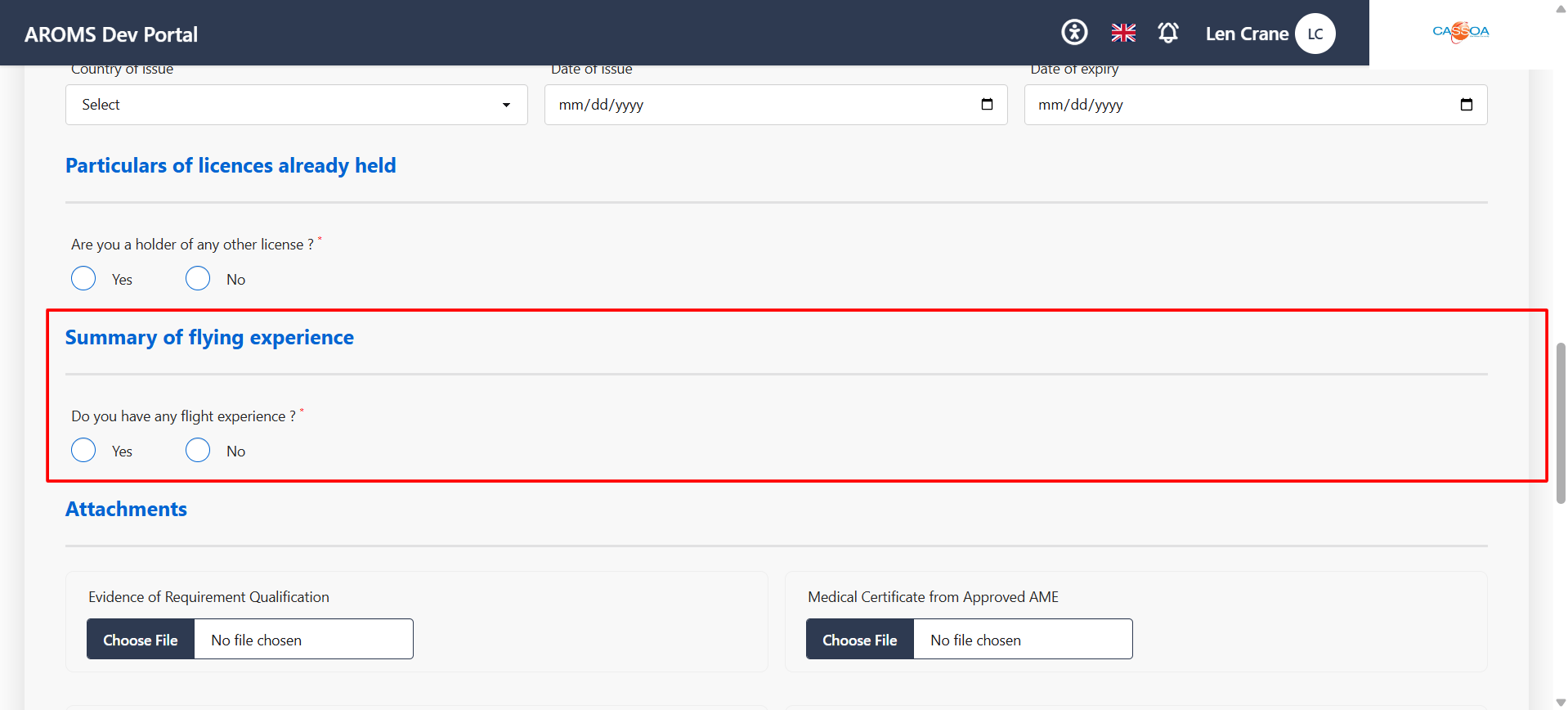
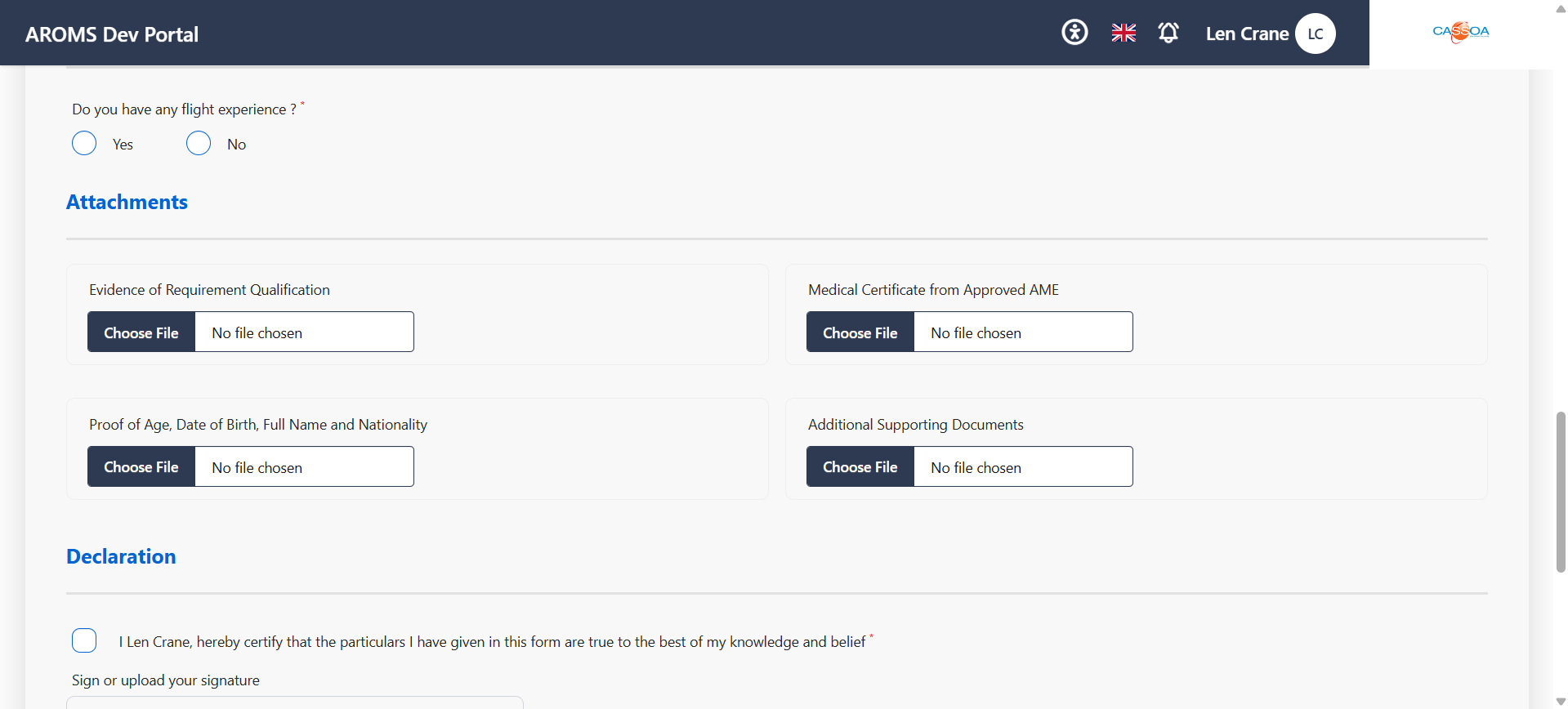
In the Summary of flying experience section, indicate whether you have any flight experience. Select Yes or No as applicable. If you select Yes, provide the required flying experience details.
Attachments
In the Attachments section, upload all required supporting documents. For the SPL example, the form may request documents such as:
- Evidence of requirement qualification
- Medical certificate from an approved AME
- Proof of age, date of birth, full name, and nationality
- Additional supporting documents
Use the Choose File button for each required document.
Declaration
In the Declaration section, confirm that the particulars provided in the form are true to the best of your knowledge and belief. Tick the declaration checkbox, then sign or upload your signature.
The declaration date is displayed on the form. After confirming the declaration and signature, click Submit.
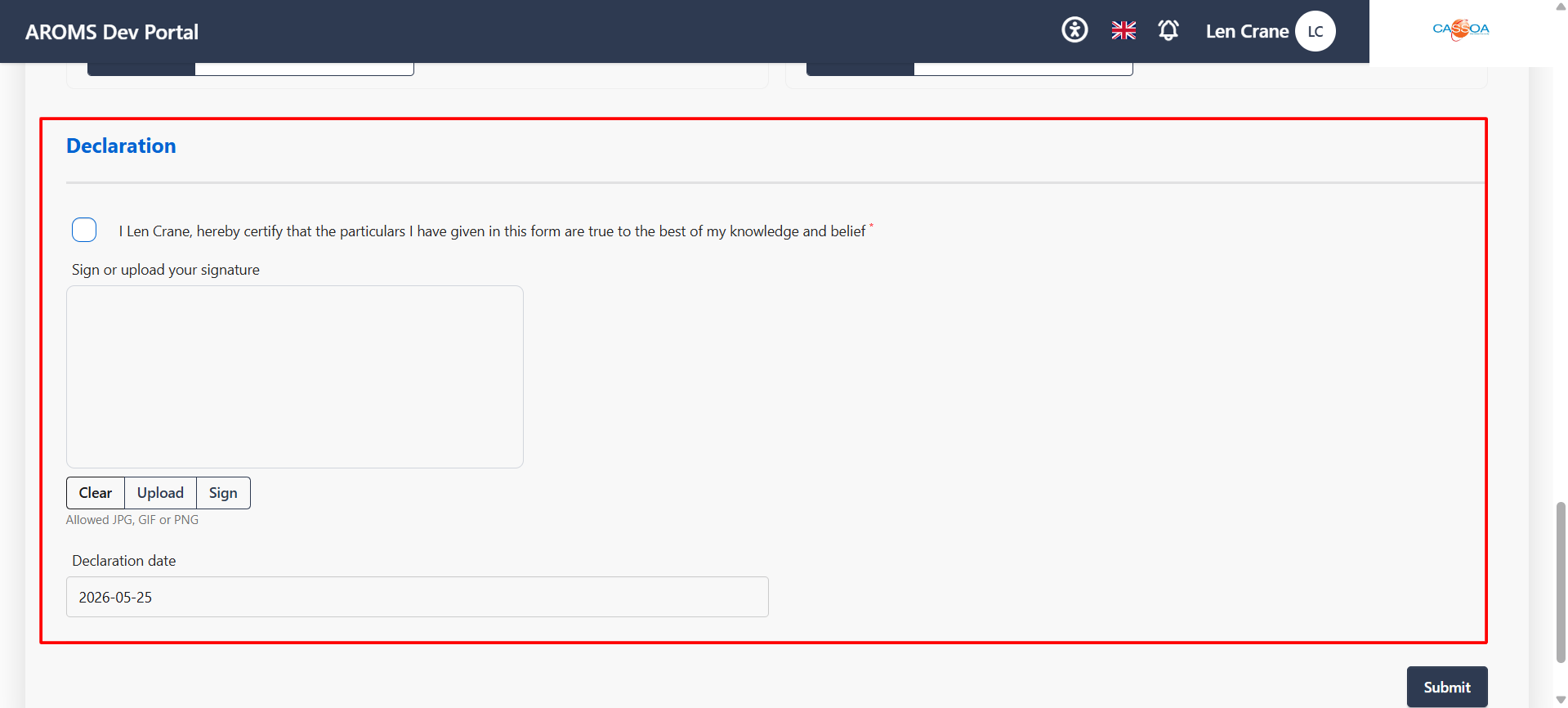
After filling in all required details, review the information carefully before submitting.
Successful Submission
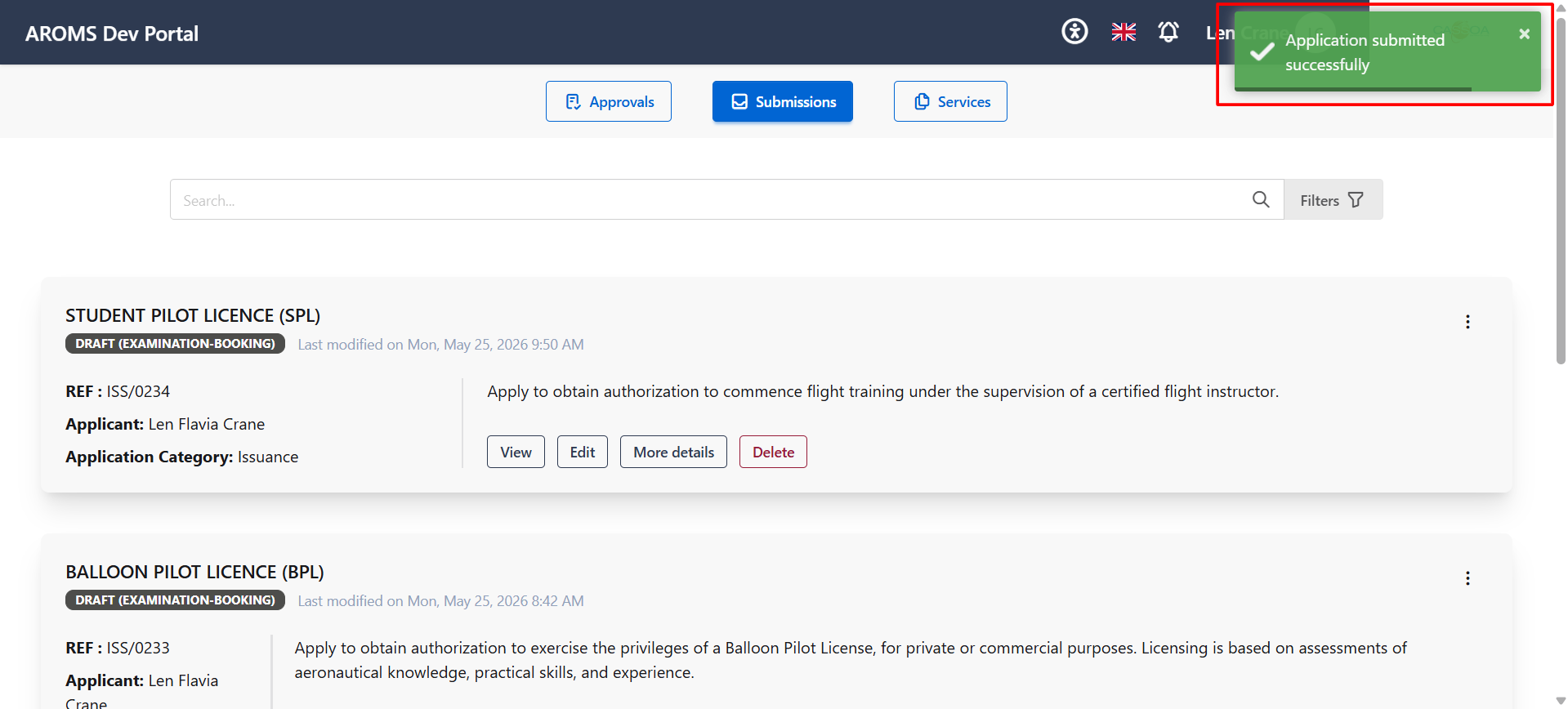
Upon successful submission, a confirmation page will be displayed.
A success message will appear at the top-right corner of the screen.
Tracking Application Status
After submission:
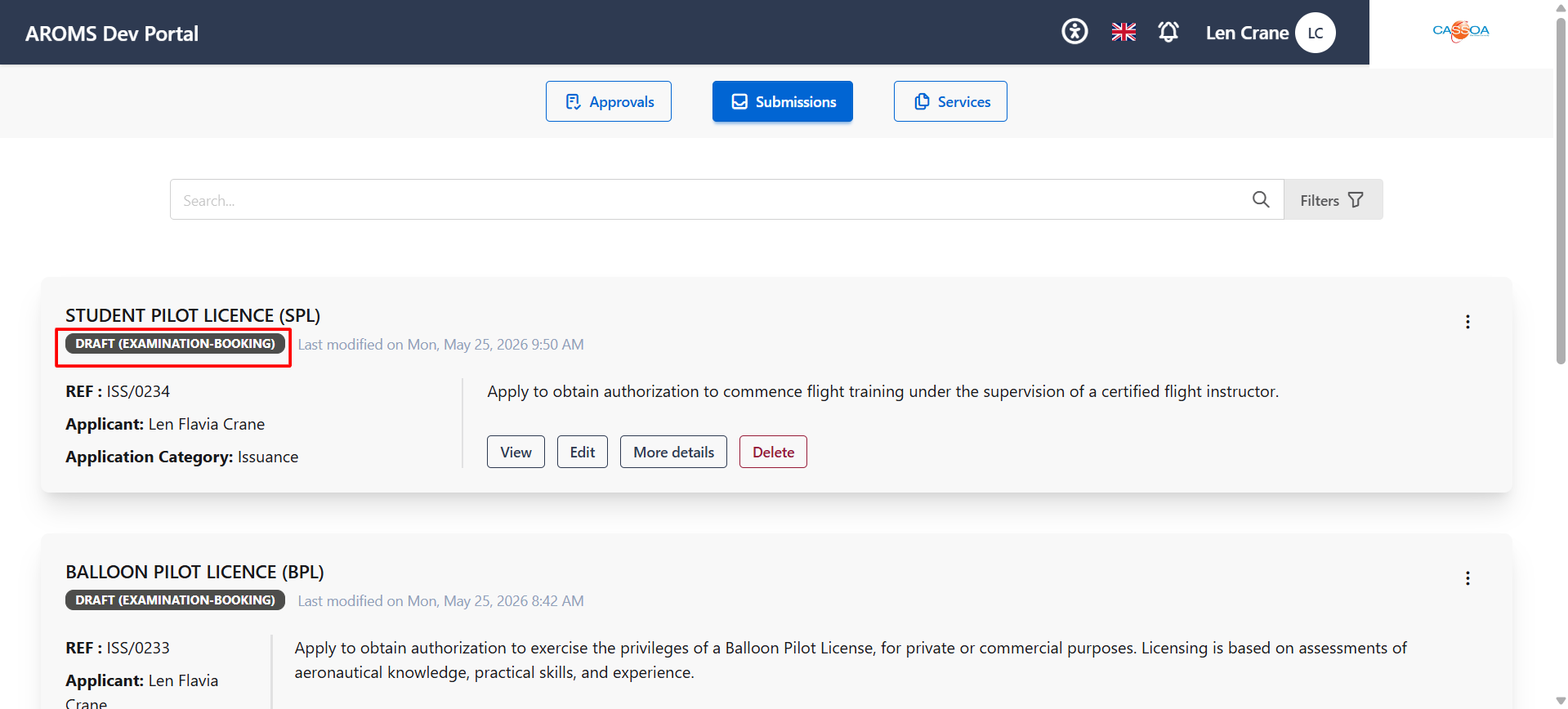
- Navigate to the Submissions page.
- Locate your application to monitor its status.
- Wait for the application status to change to Approved.